A brief overview of all individual changes is available in the Changelog. But now let’s dive into the details of the major new features.
Audit Compliance
In the library settings, you can now enable audit compliance features. These are tools designed to simplify legally compliant document storage. In Germany, these requirements are governed by the GoBD. Please note, however, that full compliance with these requirements also requires adjustments to other areas of your business processes. We will provide more details on this soon.
Once the feature is enabled, confirmed entries are specially protected. Except for fields, tags, notes, and markers, all other data becomes read-only to prevent unwanted changes. The entry can be made writable again, but this should happen rarely and will be logged.
Dashboard
The dashboard summarizes the information of the currently selected documents. This allows you to quickly get an overview of income and expenses as well as additional details about customers, categories, and tags (referred to as “groups” below).
The previous dashboard served well but has now been fundamentally redesigned. In addition to the new visual design, there are also some new features. At a glance, you can now see how much is still outstanding. The trend shows how your numbers have developed compared to the same previous period. The dashboard title is automatically set meaningfully, but you can also change it directly on the spot to make your printout more informative.
Clicking on a group name selects it in the sidebar. Clicking while holding the ⌥ key sets a corresponding filter instead.
Contacts
Step by step, we are expanding Receipts Space to capture more information. In this release, we have first extended contacts to help with more specific data for classification. This means we can more reliably assign new documents to a customer using the IBAN and international VAT ID.
Additionally, each contact can be assigned a document type, which is then directly applied to automatically assigned documents. This greatly facilitates the distinction between suppliers and customers.
Encryption
It is possible to encrypt all data in the library if it needs to be stored in a location that is not 100% trustworthy, such as shared directories or on a USB stick. Synchronization between different devices is still possible if they all know the password. This achieves secure end-to-end encryption.
Important!
The password cannot be recovered! Make sure you store it safely or can remember it. Otherwise, the data would be lost.
Encryption can only be set up or changed when creating or when creating a copy. If you want to change the password, you need to create a new copy and continue working with it.
During runtime, some data is stored locally in plain text. If you want to leave no traces here either, you can enable “Cleanup” in the settings to delete all temporary data when quitting the app. However, this may cause minor delays when reopening the library after restarting the app.
Save Copy As…
Generally, you can copy or duplicate the library in Finder and then open it at the new location by double-clicking. However, please note that changes to the copy are not automatically transferred to the original library. Synchronization only occurs when multiple devices access the same library.
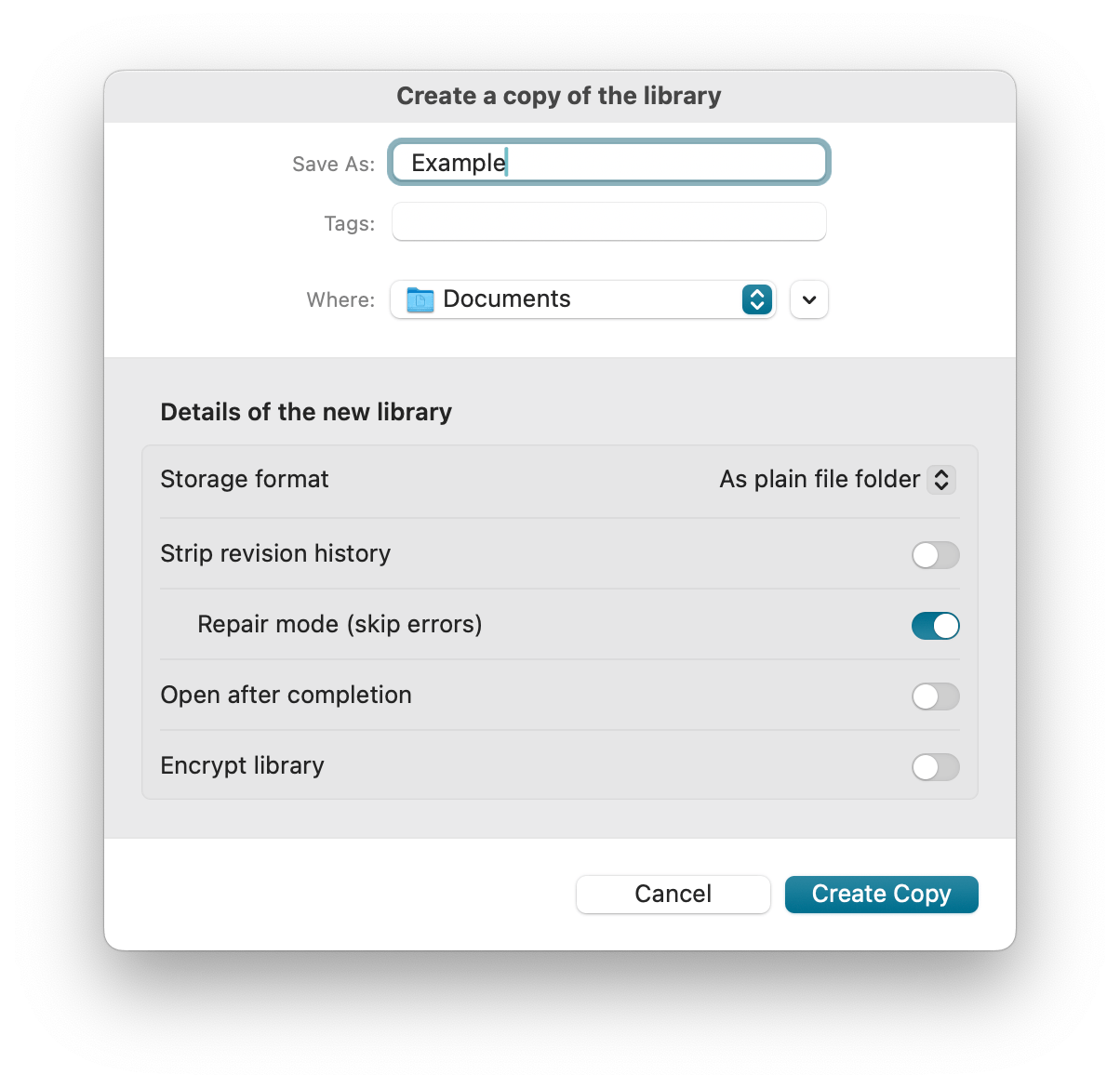
Nevertheless, the “Save Copy As…” function in the main menu is necessary. Besides conveniently creating a copy, there are other reasons to use this function:
- Converting to the current file format
- Removing history and original files
- Changing or setting up encryption
The file format is adjusted from time to time to meet requirements. While the app remains backward compatible, it can sometimes be useful to switch to the current format, for example, if there are problems with synchronization via certain services.
The Receipts file format offers audit-compliant storage. However, this also means that any changes to data and files in the library are preserved. A copy without this information may therefore be significantly more compact.
The library’s key currently cannot be changed afterward for technical reasons, so you need to create a copy to use a new key. But a previously unencrypted library can also be encrypted this way.
Repair
If, for any reason, there are problems with the library or if parts of it are missing or damaged, it is possible to repair the library. To do this, the library must be opened, even if error messages appear. A copy can then be created. It is important to select the “Complete copy” option. In addition, “Repair Mode” must be activated. Now all checks are disabled and a functional new library is written.
The following errors are skipped:
- Test of the checksum and size of a transaction
- Test of the checksum of the previous transaction
- Incorrect data row in a transaction
- Gaps in the sequence of transactions.
Why can a library be damaged?
Every change generates a small change step. If the app is closed unexpectedly or there are problems with the synchronization service (iCloud, Dropbox, etc.), one of the steps may be lost. We try to prevent this as much as possible, but the advantage of storing data on our own infrastructure unfortunately comes with the disadvantage of a non-100% controlled environment. However, such an error is not a big deal, because what is displayed in the app corresponds to what is actually available. The repair mode will fix things if necessary.
Library Folder
With Receipts Space, a new file format was introduced that enables exchange between different installations on multiple computers. This file is a so-called package and appears as a file in Finder but consists of many directories and smaller files. Feel free to take a look by clicking “Show Package Contents” in Finder. You can find details on how this data is structured in the technical documentation.
Unfortunately, it has turned out that this format is problematic for some file synchronization services like iCloud. For this reason, we now offer the option to set up this structure as a regular open folder. This has the advantage that synchronization services only transfer the individual files that have changed, rather than the entire package. You can find this option in the save dialog.
iCloud Tips
To achieve optimal results when synchronizing data via iCloud, we recommend two measures:
- Mark the library in Finder as “Keep Downloaded”. This ensures the current state of the library is always present on the local computer, reducing wait times. This marking is recognizable by the filled circle with a downward arrow behind the filename. You can easily set this marking by opening the context menu of the file in Finder and selecting “Keep Downloaded”.
- Create the library as a “simple folder”. This way, iCloud only “sees” individual files and doesn’t periodically re-download the entire library. Changes should appear on other computers much faster this way.
If the library is set up as a folder and you don’t want all documents to be permanently downloaded, it’s still recommended to permanently synchronize the transactions folder. The individual documents are stored in the assets folder and are downloaded on demand. This way, you can save storage space on the device. However, we still recommend downloading the entire library to the computer as described above.
Miscellaneous
- Merging documents: A frequently requested feature was the ability to merge multiple documents into one. This function is now available, and the PDFs are appended to each other and the keywords are combined. The old entries are then moved to the trash. This feature is not available in audit-compliant mode.
- UI for PDF display: The various display options for PDFs were not easily accessible. For this reason, they are now prominently displayed at the bottom of the PDF as soon as you enter the area. This also makes the PDF manipulation functions easier to access.
- Revision of library settings: The settings have been made clearer and organized into meaningful groups. New options have been added to better highlight existing features.
- Journal display: Both the context menu in the journal and the main menu now offer more accessible functions for customizing the display. It is also indicated whether the payment date or the document date is used for classification.
- Archiving unused contacts, categories, and keywords.
The entire app has been improved in many areas. In particular, the focus was on stability and accessibility of the functions.